The average professional manages over 100 online accounts.
Remembering a unique, strong password for each one is impossible. Reusing passwords across accounts — the most common response to this impossibility — creates a catastrophic single point of failure: one breached account means every account using that password is compromised.
Password managers solve this problem completely. They generate unique, cryptographically strong passwords for every account, store them securely, and fill them automatically — eliminating both the security risk of password reuse and the cognitive overhead of remembering credentials.
In 2026, using a password manager is not optional for professionals who take security seriously. The question is which one.
This guide identifies the best password managers for professional use — evaluating security architecture, usability, business features, and value — with honest assessments of who each product serves best.
- Why Password Security Matters More Than Ever
- Quick Comparison Table
- Understanding Zero-Knowledge Architecture
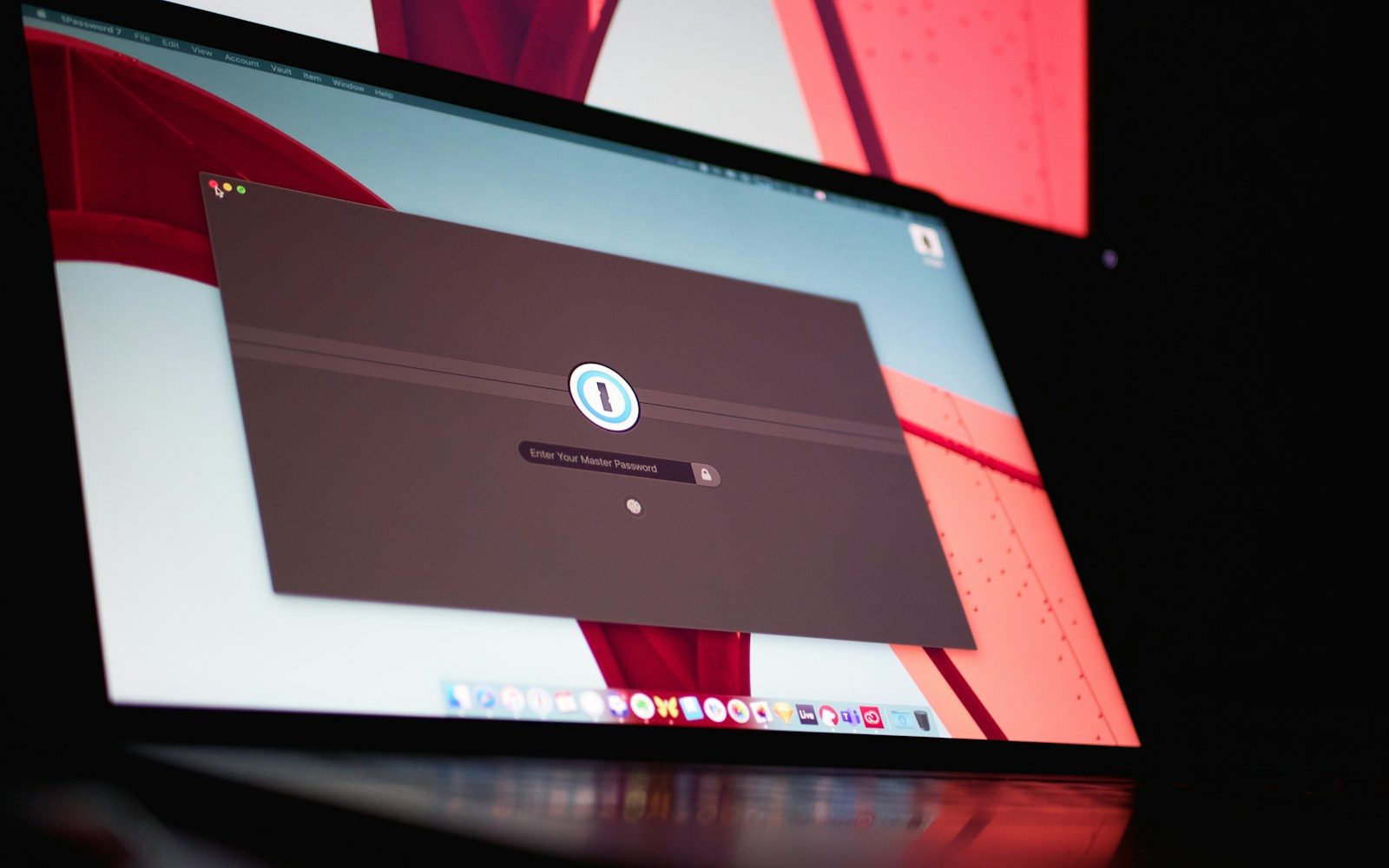
- 1. 1Password — Best Overall Password Manager for Professionals
- 2. Bitwarden — Best Free Password Manager
- 3. Dashlane — Best for Feature Completeness
- 4. NordPass — Best Value Premium Password Manager
- 5. Apple Passwords — Best for Apple-Only Professionals
- LastPass: Why We No Longer Recommend It
- Two-Factor Authentication: The Essential Companion
- Migrating to a Password Manager: A Practical Guide
- Password Manager Security for Business Environments
- For Canadian Professionals
- FAQ
- Conclusion
Why Password Security Matters More Than Ever
Data breaches have become routine. In 2025 alone, multiple major breaches exposed hundreds of millions of credentials — email addresses paired with password hashes that attackers crack and use to attempt access across other services.
The attack chain is straightforward: your email and password are exposed in a breach of Service A. Attackers use those credentials to attempt login to your bank, email provider, and professional accounts. If you have reused that password anywhere, those accounts are now compromised.
A password manager breaks this chain by ensuring every account has a unique, unguessable password. Even if one service is breached, the exposed credentials are useless for accessing any other account.
For professionals who handle client data, financial information, or sensitive business communications, this protection is a professional obligation — not merely a personal convenience.
Quick Comparison Table
| Manager | Zero-Knowledge | Family/Teams | Emergency Access | Price/Year | Best For |
|---|---|---|---|---|---|
| 1Password | ✅ | ✅ | ✅ | $35.88 | Best overall |
| Bitwarden | ✅ | ✅ | ✅ | Free / $10 | Best free option |
| Dashlane | ✅ | ✅ | ✅ | $59.99 | Best features |
| NordPass | ✅ | ✅ | ✅ | $23.88 | Best value |
| Apple Passwords | ✅ | ✅ | Limited | Free | Best for Apple users |
| LastPass | ✅ | ✅ | ✅ | $36 | Avoid (see below) |
Understanding Zero-Knowledge Architecture
Before comparing specific products, one technical concept is worth understanding — because it is the most important security characteristic to verify in any password manager.
Zero-knowledge architecture means the password manager provider cannot see your passwords — ever. Your vault is encrypted on your device before it is transmitted or stored. The encryption key is derived from your master password, which never leaves your device. Even if the provider’s servers are breached, attackers cannot decrypt your vault without your master password.
Every reputable password manager on this list uses zero-knowledge architecture. Products that do not — that store or can access your unencrypted passwords — should not be used for professional or personal credentials.
1. 1Password — Best Overall Password Manager for Professionals
1Password has established itself as the professional standard in password management — combining strong security architecture, excellent user experience, robust business features, and consistent reliability across platforms.
Why it leads:
1Password’s Travel Mode is the most distinctive professional security feature available in any password manager. When enabled before crossing a border, Travel Mode removes specified vaults from your device entirely — making sensitive credentials inaccessible even to law enforcement examination or device seizure — and restores them after you reach your destination.
For professionals who travel internationally with sensitive client or business credentials, this feature addresses a genuine security risk that most password managers ignore.
Security architecture: 1Password uses end-to-end encryption with AES-256 — the industry standard for strong symmetric encryption. Its Secret Key system adds an additional layer of security beyond your master password: a 34-character cryptographically random key generated on your device that is required for account access from new devices. Even if your master password is compromised, an attacker cannot access your vault without your Secret Key.
Watchtower: 1Password’s Watchtower feature monitors your stored credentials against known data breach databases — alerting you when passwords appear in breached credential lists, when accounts use weak or reused passwords, and when websites support two-factor authentication you have not yet enabled. This proactive monitoring converts your password manager from a storage tool into an ongoing security monitoring system.
Business and team features: 1Password Teams and Business plans provide shared vaults for credential sharing across organizations — allowing teams to share service credentials, API keys, and shared account access without emailing passwords. Granular permissions control who can view, use, and manage specific vault items.
Platform support: 1Password supports Mac, Windows, iOS, Android, Linux, and ChromeOS — with browser extensions for Chrome, Firefox, Safari, and Edge. The experience is consistent and polished across all platforms.
Families plan: The 1Password Families plan covers up to five users — worth considering for professionals who want to extend password security to their household.
Where it falls short: No permanent free tier — 1Password requires a paid subscription after the trial period. The Secret Key adds security but also complexity — losing both your master password and Secret Key locks you out of your account permanently.
Pricing: Individual: $2.99 USD/month billed annually ($35.88/year). Families (5 users): $4.99/month billed annually ($59.88/year). Teams: $19.95/month for 10 users.
Verdict: The strongest overall recommendation for professionals who want the most polished, feature-rich password manager with the strongest business and travel security features.
2. Bitwarden — Best Free Password Manager
Bitwarden is the most credible free password manager available — and its free tier is genuinely functional for individual professional use, not a stripped-down entry point designed to force upgrade.
Why it stands out:
Bitwarden is open source — its code is publicly available for independent security researchers to audit. This transparency is a meaningful security credential. Closed-source software requires trusting the provider’s security claims. Open-source software allows independent verification.
Bitwarden has undergone independent third-party security audits — with results published publicly. For security-conscious professionals, this transparency is a genuine differentiator.
Free tier capabilities: The Bitwarden free tier includes unlimited password storage across unlimited devices — a genuinely unlimited offering that competing free tiers do not match. Password generation, secure notes, autofill, and two-factor authentication are all included at no cost.
Premium tier: At $10 USD per year — the lowest price of any premium password manager on this list — Bitwarden Premium adds emergency access, advanced two-factor authentication options, and a built-in TOTP authenticator that replaces a separate authenticator app.
Self-hosting option: For professionals with technical backgrounds who want maximum control over their credential storage, Bitwarden can be self-hosted — running your own Bitwarden server rather than using Bitwarden’s cloud infrastructure. This option exists nowhere else on this list and is particularly relevant for professionals with strict data sovereignty requirements.
Where it falls short: The user interface is functional but less polished than 1Password or Dashlane — a meaningful difference in daily use where autofill reliability and interface responsiveness affect your experience dozens of times per day. Business features are less developed than 1Password for team use cases.
Pricing: Free tier: Fully functional for individual use. Premium: $10 USD/year. Families (6 users): $40/year. Teams: $4/user/month.
Verdict: The strongest recommendation for professionals who want a free, security-transparent, fully functional password manager — and the best value premium upgrade at $10/year for additional features.
3. Dashlane — Best for Feature Completeness
Dashlane is the most feature-rich password manager available — bundling password management, dark web monitoring, a built-in VPN, phishing alerts, and identity monitoring into a single subscription.
Why it stands out:
Dashlane’s Passkey support is among the most mature implementations available — seamlessly managing the passkeys that are increasingly replacing passwords on major services, alongside traditional password credentials. For professionals transitioning toward passkey-based authentication, Dashlane’s handling of both credential types in a unified interface is practically valuable.
Dark web monitoring: Dashlane continuously scans dark web databases for your email addresses and alerts you when they appear in breach data — providing proactive notification when your credentials may have been compromised before you would otherwise know.
Built-in VPN: Dashlane bundles a VPN powered by Hotspot Shield — providing basic VPN functionality without a separate subscription. For professionals who need occasional VPN access, this eliminates a separate subscription. For professionals with more demanding VPN requirements — see our complete VPN guide — a dedicated VPN provider is a stronger solution.
Password Changer: On supported sites, Dashlane can automatically change passwords — updating the stored credential and the actual site password in a single action. This feature is useful for mass password updates following a breach.
Where it falls short: At $59.99/year, Dashlane is the most expensive individual plan on this list. The bundled VPN is adequate for basic use but not a replacement for a dedicated VPN service for professionals with higher security requirements. The feature breadth creates more interface complexity than simpler alternatives.
Pricing: Premium: $4.99 USD/month billed annually ($59.99/year). Friends and Family (10 users): $7.49/month ($89.99/year).
Verdict: The right choice for professionals who want the most comprehensive feature set in a single subscription — particularly those who value dark web monitoring and passkey management alongside password storage.
4. NordPass — Best Value Premium Password Manager
NordPass is developed by the team behind NordVPN — bringing the same security focus and aggressive pricing to password management. It delivers the core functionality required for professional password management at the lowest price among paid options.
Why it stands out:
NordPass uses XChaCha20 encryption — a modern algorithm that provides security comparable to AES-256 with potential performance advantages on devices without hardware AES acceleration. While AES-256 remains the industry standard and is not meaningfully less secure, XChaCha20 represents NordPass’s commitment to current cryptographic best practices.
Data breach scanner: NordPass scans for your email addresses in known breach databases — alerting you when credentials may have been exposed. The implementation is straightforward and functional.
Password health report: NordPass evaluates your stored passwords for weakness, reuse, and age — providing a structured view of your credential security posture.
NordPass Business: For teams, NordPass Business provides shared vaults, activity logs, and administrative controls at competitive pricing relative to 1Password and Dashlane business plans.
Where it falls short: NordPass’s ecosystem integration with NordVPN is a marketing point more than a functional integration — the two products remain separate subscriptions. The feature set is solid but less comprehensive than Dashlane and less polished than 1Password. Emergency access is available but requires manual setup that is less intuitive than competing implementations.
Pricing: Premium: $1.99 USD/month billed annually ($23.88/year). Family (6 users): $3.69/month ($44.28/year). Business: $4.99/user/month.
Verdict: The strongest price-to-functionality ratio among paid password managers. The right choice for professionals who want reliable paid password management at the lowest annual cost.
5. Apple Passwords — Best for Apple-Only Professionals
Apple’s built-in Passwords app — significantly expanded in iOS 18 and macOS 15 in 2024 — has matured into a genuinely capable password manager for professionals operating entirely within the Apple ecosystem.
Why it stands out:
Apple Passwords is free, built into every Apple device, and requires no additional setup. For professionals who use iPhone, Mac, and iPad exclusively — and who want password management without an additional subscription — it handles the core use cases competently.
iCloud Keychain sync: Passwords sync across all your Apple devices through iCloud — encrypted end-to-end, with Apple maintaining zero-knowledge of your credentials. The sync is seamless and requires no configuration.
Passkey support: Apple’s passkey implementation is among the most mature available — deeply integrated into iOS and macOS authentication flows. For professionals who use Apple devices exclusively, passkey management through Apple Passwords is smoother than any third-party alternative.
Shared password groups: Apple Passwords allows sharing credential groups with family members or trusted contacts — providing basic shared vault functionality for household use.
Security alerts: Apple monitors your stored passwords against breach databases and alerts you when credentials appear in known breach data.
Where it falls short: The Apple ecosystem limitation is the primary constraint. Windows support — available through iCloud for Windows — is functional but less polished than native alternatives. Android support does not exist. For professionals who use any non-Apple device regularly, the experience is meaningfully degraded.
Business and team features are limited compared to dedicated business password managers. Emergency access functionality is less developed than 1Password or Bitwarden.
Pricing: Free. Included with all Apple devices.
Verdict: The right choice for professionals using Apple devices exclusively who want zero-cost password management with excellent passkey support. Not appropriate for professionals who use Windows, Android, or require business team features.
LastPass: Why We No Longer Recommend It
LastPass was once the default password manager recommendation. Following a significant security breach in 2022 — in which attackers gained access to encrypted password vaults — and subsequent handling of the incident that raised serious questions about security practices and transparency, LastPass is no longer a recommended option for professional use.
The breach and its aftermath revealed limitations in LastPass’s security architecture and communication practices that make it a poor choice relative to alternatives with equivalent or lower pricing and stronger security records.
If you are currently using LastPass, migrating to 1Password, Bitwarden, or another recommended alternative is worth the one-time migration effort for the long-term security improvement.
Two-Factor Authentication: The Essential Companion
A password manager significantly improves your credential security. Two-factor authentication — requiring a second verification step beyond your password — provides an additional layer that protects accounts even if a password is compromised.
Authenticator apps (recommended): Apps like Authy, Google Authenticator, or the built-in TOTP feature in Bitwarden Premium and 1Password generate time-based one-time codes — six-digit numbers that expire every 30 seconds. Even if an attacker has your password, they cannot access your account without the current code.
Hardware security keys (strongest): Physical security keys — YubiKey is the most widely recommended — provide the strongest two-factor authentication available. The key must be physically present to authenticate, eliminating the possibility of remote account takeover even with full credential knowledge.
For professionals handling highly sensitive accounts — financial services, critical infrastructure, client data — hardware security keys represent the strongest available protection.
SMS verification (weakest): SMS text message codes are better than no two-factor authentication but are vulnerable to SIM-swap attacks — where attackers convince your carrier to transfer your number to their device. Avoid SMS verification for high-value accounts where authenticator app or hardware key alternatives are available.
Migrating to a Password Manager: A Practical Guide
Step 1: Choose your password manager
Based on the analysis above — 1Password for professionals who want the best overall experience, Bitwarden for those who prefer free and open-source, NordPass for the best value paid option.
Step 2: Import existing passwords
All major password managers import from browsers — Chrome, Safari, Firefox — and from other password managers. The import process typically takes less than 10 minutes:
- Export passwords from your browser (Settings → Passwords → Export)
- Open your new password manager
- Navigate to import settings
- Select your browser or previous manager
- Import the exported file
Step 3: Install browser extensions and mobile apps
Install your password manager’s browser extension on every browser you use. Install the mobile app on every device. Enable biometric authentication — Face ID, Touch ID, fingerprint — for quick access without typing your master password repeatedly.
Step 4: Enable two-factor authentication on your password manager
Your password manager account should be protected by two-factor authentication — it is the most sensitive account you have. Enable an authenticator app or hardware key immediately after setting up your account.
Step 5: Update weak and reused passwords
Use your password manager’s security report — Watchtower in 1Password, the security dashboard in Bitwarden — to identify weak and reused passwords. Prioritize updating:
- Email accounts — your email is the recovery method for every other account
- Financial accounts — banking, investment, credit cards
- Work and client-related accounts
- Any account using a reused password
Update these accounts immediately. For the remaining accounts, update passwords as you log in naturally — replacing old passwords with generated ones through your password manager each time you access an account.
Step 6: Set up emergency access
Most password managers allow you to designate a trusted emergency contact who can request access to your vault — with a waiting period that allows you to decline if the request is unauthorized. For professionals, setting up emergency access for a trusted family member or colleague ensures vault access in emergency situations.
Password Manager Security for Business Environments
For professionals managing team or business credentials — shared service accounts, API keys, infrastructure credentials — individual password managers are insufficient. Business password manager plans provide:
Shared vaults: Credential sets accessible to specific team members — allowing shared access to service accounts without distributing actual passwords via email or messaging.
Granular permissions: Control over who can view, use, copy, and manage specific credentials — preventing junior team members from accessing sensitive credentials they should not have access to.
Activity logs: Audit trails showing when specific credentials were accessed, by whom, and from which device — essential for security incident investigation and compliance requirements.
Offboarding control: When a team member leaves, their access to shared vaults is revoked immediately — without requiring password changes on every affected account.
1Password Business is the most comprehensive business password manager available. Bitwarden Teams is the most cost-effective. Both support the core business credential management requirements above.
For Canadian Professionals
All password managers on this list are available to Canadian users with full functionality. Pricing is in USD — apply the current exchange rate for CAD equivalent costs.
Canadian-specific consideration: For professionals subject to Canadian privacy law — PIPEDA federally, Law 25 in Quebec — the storage location of credential data may be relevant for compliance purposes. Bitwarden’s self-hosting option allows Canadian data residency. 1Password and Dashlane offer enterprise plans with data residency options for organizations with specific requirements — contact their sales teams for details.
Wealthsimple and Canadian financial account security: Canadian professionals using Wealthsimple, Questrade, or other Canadian financial platforms should ensure these accounts use unique passwords managed through a password manager and have two-factor authentication enabled. Financial accounts are high-value targets and the most important accounts to protect.
FAQ
Can my password manager be hacked? Password managers with zero-knowledge architecture store only encrypted data — meaning a breach of their servers exposes encrypted vaults, not readable passwords. The LastPass breach in 2022 demonstrated that encrypted vaults can be stolen — but cracking AES-256 encrypted vaults with strong master passwords is computationally infeasible. The practical risk of a strong master password vault being cracked remains very low. The risk of reusing passwords across accounts — which a password manager eliminates — is immediate and well-documented.
What if I forget my master password? Most password managers provide account recovery options — emergency access through a trusted contact, a recovery kit printed at setup, or account recovery codes. The specific options vary by provider. Review your chosen provider’s recovery options during setup and store recovery credentials securely — in a safe or a trusted physical location.
Should I store my password manager’s master password anywhere? Your master password should be memorized — not stored digitally. If you cannot reliably memorize it, write it down and store the written copy in a physically secure location — a home safe or bank safe deposit box. Never store your master password in another digital account.
Is a free password manager secure enough for professional use? Bitwarden’s free tier uses the same zero-knowledge encryption architecture as its paid tier and is independently audited. It is genuinely secure for professional use. The free tier limitation is features — not security.
Can password managers handle passkeys? Yes. 1Password, Dashlane, and Bitwarden all support passkey storage and management — handling both traditional passwords and the passkeys that increasingly replace them on major services. Apple Passwords provides the deepest passkey integration for Apple ecosystem users.
Conclusion
A password manager is the highest-return security investment available to any professional — eliminating the password reuse vulnerability that makes credential breaches catastrophic, at a cost of zero to $60 per year.
For most professionals, 1Password at $35.88 per year is the strongest recommendation — delivering the best user experience, most comprehensive feature set, and strongest business capabilities in the category.
For professionals who want free, open-source, and audited — Bitwarden’s free tier is genuinely excellent and the $10 per year premium upgrade adds meaningful features at negligible cost.
For Apple-only professionals — Apple Passwords is free, built-in, and capable for individual use within the ecosystem.
Whatever you choose: enable two-factor authentication on your password manager account immediately after setup. Update your most sensitive account passwords to generated, unique credentials in the first week. Use the security report to identify and address remaining weak and reused passwords over the following month.
The security improvement from a properly configured password manager is immediate and permanent. The effort to set it up is a few hours, once.


Comments